Dashboard overview
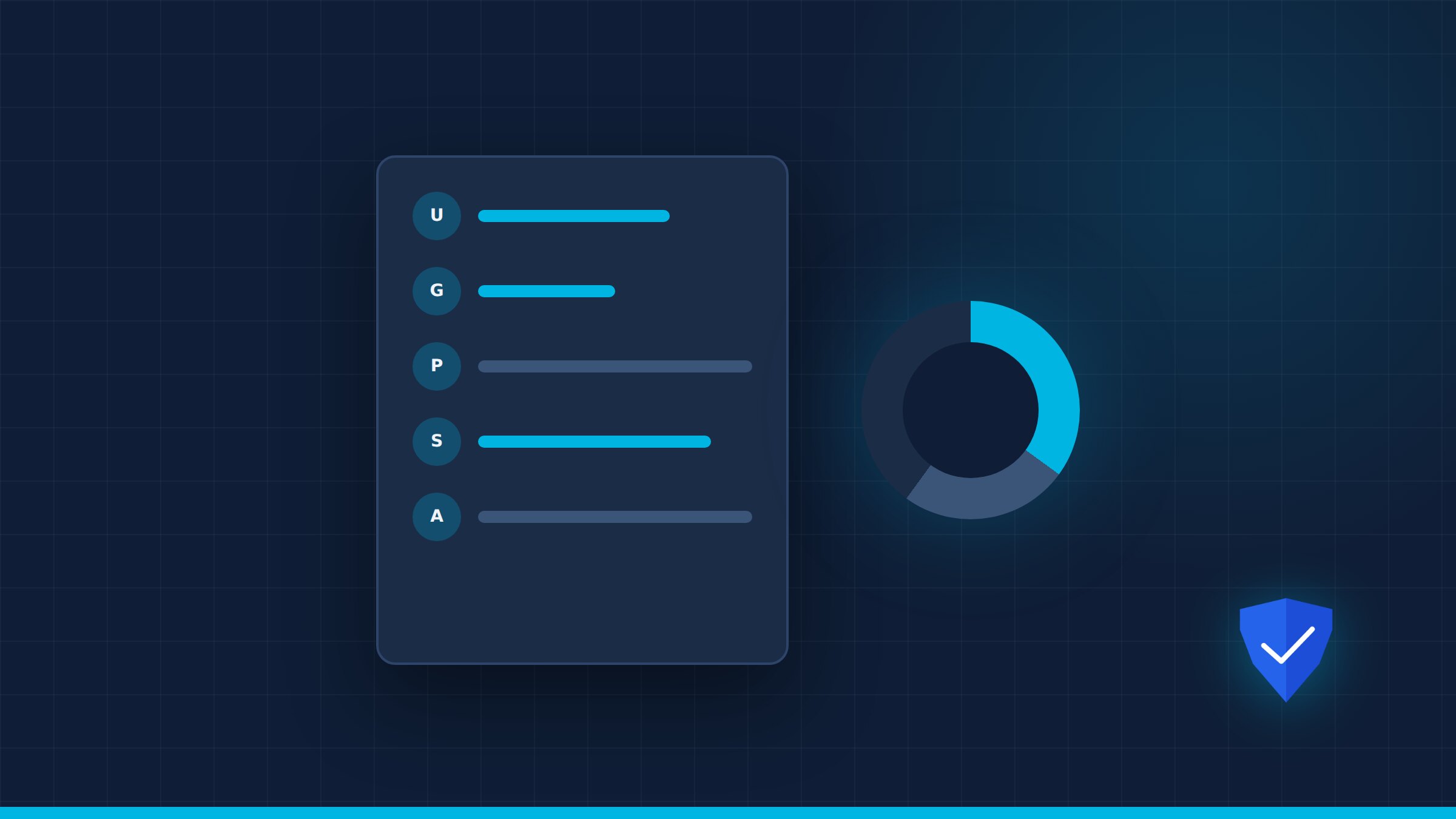
The Overview tab is the first thing you see after logging into `/admin`. It shows the metrics that matter: registered users, active groups, indexed PDFs, indexed pages, and a quick server-status indicator.
Below the counters you will find a donut chart breaking down storage by file type and a list of the top directories by volume. These are useful sanity checks: if a single folder suddenly grows, you will spot it here before users complain about slow loads.
- Use the donut chart to confirm your storage mix matches expectations.
- Top directories help you find where to add index scopes or retention rules.
- Server status tells you whether all services are healthy before you start maintenance.
Users and groups
Identity & Access is where the human side of security happens. The Users tab lists everyone with an identifier, full name, email, status, and assigned roles. Click a user to edit their profile, assign groups, or attach inline Shield policy rules.
Groups collect users by role or department. Each group shows its name, type (system or custom), member count, and attached Shield policies. It is usually cleaner to attach policies to groups and put users in groups than to write per-user exceptions.
- Deactivate a user instantly without deleting their audit history.
- System groups are managed automatically; custom groups are yours to maintain.
- Inline rules override group policy for that specific user — use sparingly.
Shield policies
Shield is the policy engine that decides who can do what. Policies are built as a visual rule set — Allow and Deny statements over actions and resources — with a read-only JSON view for review. System policies are immutable; custom ones clone and evolve.
Action categories cover file and folder operations as well as administrative capabilities. Any Allow statement can additionally require a second factor.
- Start restrictive: deny by default, then allow exactly what each role needs.
- Scope rules to folders, individual files, or administrative functions.
- Require MFA for sensitive actions, especially downloads and administrative work.
IP rules and trusted networks
IP Rules give names to networks — single addresses or CIDR blocks — and adjust how Aegis treats connections from them: which challenges apply, and which group or policy new users from that network receive. It is the building block for trusted office networks and VPN ranges.
The page detects and refreshes the server's own public IP for you, and a built-in test tool shows which rules match a given address before you activate anything. Rules toggle active or inactive without being deleted.
- Bypassing 2FA or the CAPTCHA lowers the barrier — only do it for networks you physically control.
- Auto-assignment is the fastest onboarding: anyone connecting from the office range lands with the right role and policy.
- Test a rule against a few known addresses before enabling any bypass.
Per-folder security (ACLs)
Beyond the organization-wide Shield policies, each folder can carry its own access control list: grant or deny specific actions to a user or a group, with optional expiration. Folder ACLs are the surgical tool — use them for exceptions without touching the global policy.
Entries inherit down the folder tree by default, and a folder can break inheritance to start with a clean rule set. The security view shows both the folder's own entries and the inherited ones, so effective access is never a guess.
- Deny wins over allow — use it sparingly and document why.
- Set expirations for temporary access (audits, external reviews) so access closes by itself.
- Break inheritance only when the folder truly needs a different rule set.
Activity log
The Activity Log is a forensic audit trail. Every entry has a timestamp, actor, IP address and country, event type, affected resource, and a metadata JSON blob. You can filter by sort order, date range, user, and event type, and export the result to CSV.
The heatmap shows activity density over time, which is handy for spotting unusual spikes. Each resource link lets you open the file in the viewer or jump to the folder that contains it.
- Export CSV before running incident response so you have an offline copy.
- Use the user filter to trace a single person's actions across all resources.
- Resource links save time when you need to verify what was actually viewed.
Storage mounts
Storage Management maps physical paths into the Virtual File System. To add a new mount, give it a label and a physical path; the interface also shows detected volumes as chips you can click to autofill common paths.
The mounts table shows label, path, status, and actions. You can configure index rules with strict-prefix include/exclude lists, and force a structural sync when the underlying filesystem changes outside Aegis.
- Always verify the physical path before saving; a typo here affects the whole VFS.
- Include/exclude rules prevent the indexer from wasting time on temporary or system folders.
- Force structural sync sparingly; it can be I/O intensive on large volumes.
System settings
Global Settings controls organization-wide behavior: the organization name and console logo, the watermark template and its opacity, mandatory 2FA, how long trusted devices may live, and how long deleted files stay in the recycle bin.
Destructive maintenance actions — such as resetting the search index or rebuilding the file-system cache — require a typed confirmation, and physical files are never touched.
- Review watermark tokens after changing the organization name.
- Tighten trusted-device lifetime when devices are shared or lost.
- Adjust recycle-bin retention to match your records policy.
License
The License page shows your instance identifier, contract status, expiry date, and tier. Enter the activation key provided by your vendor to link the server.
To move the deployment to new hardware or decommission it, use the deactivate option first. If the license expires, the platform switches to read-only until it is renewed — keep an eye on the expiry date.
- Copy the instance ID when opening a support ticket.
- Activate before the expiry window to avoid read-only interruption.
- Deactivate before migrating to new hardware to avoid license conflicts.
Background tasks and the OCR queue
Long operations — syncs, index runs, and exports — report progress in the task center, where a single control stops everything that is running.
Scanned documents without searchable text can be sent to the OCR add-on from a folder or a file selection. Jobs report page-by-page progress, can be retried, and finish as a searchable PDF.
- Check OCR health before bulk work: the add-on reports whether it is reachable and ready.
- A document is skipped when it already has text, is already queued, or is not indexed yet.
- Users need explicit OCR permission before they can request scans themselves.
Administration is mostly about visibility and restraint: give people the least access they need, watch the logs, and keep storage and licensing healthy. For a hands-on walkthrough, request a demo.